Remote Access Windows
Accessing on-campus computing resources remotely from a (Windows) PC at home
Getting the Software that you need
You need to get (= download) the following software and install it on your Windows PC before you can work remotely from home:
MobaXterm:click here
Installing the software
To install MobaXterm:
- Open your download folder
- Double click on the MobaXterm_Setup_9.1.msi file
- Follow the instructions (it's very easy, just agree to the terms)
The installer will create a short cut on your window desk top (called MobaXterm Personal Edition).
Setting up a Secure Shell session in MobaXterm to lab0z.mathcs.emory.edu
Setup a SSH (Secure SHell) session to access MathCS machines on campus (in the MathCS lab):
Start
MobaXtermSelect the New session tab:
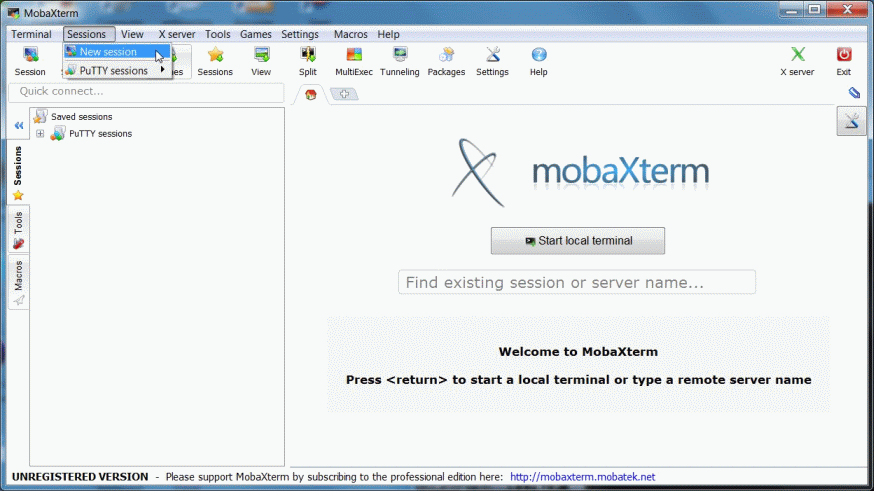
A window will pop up.
Select the SSH type session:
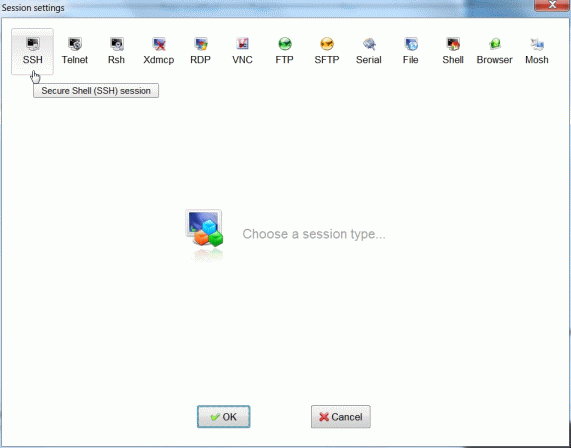
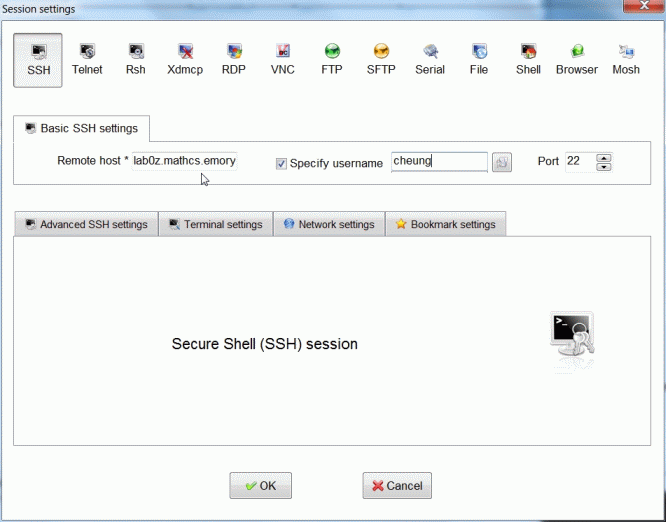
lab0z.mathcs.emory.eduinto the Remote host field- Check the Specify username box and enter your Emory NetID into the username field
- Click the OK button to save the session
Enter:
The purpose of the lab0z.mathcs.emory.edu machine
Fact:
To minimize the security risk (= hacking), the MathCS department has one machine that is directly accessible outside the department's network:
lab0z.mathcs.emory.edu
This is our "access providing server"
Therefore:
To access a lab machine (in the MathCS lab to do your homework/project), you must:
- Remote login (from your dorm) to
lab0z.mathcs.emory.edu - Use the
sshcommand to login to a lab machine (and work there)
Note:
Do not compile and run programs on lab0z.mathcs.emory.edu !!!!
That's why:
We have set up a SSH session to login to lab0z.mathcs.emory.edu
Log in to lab0z.mathcs.emory.edu from your dorm
Procedure to remote login (from your dorm) to lab0z.mathcs.emory.edu:
Open the MobaXterm window
Select the
lab0z.mathcs.emory.eduSSH session: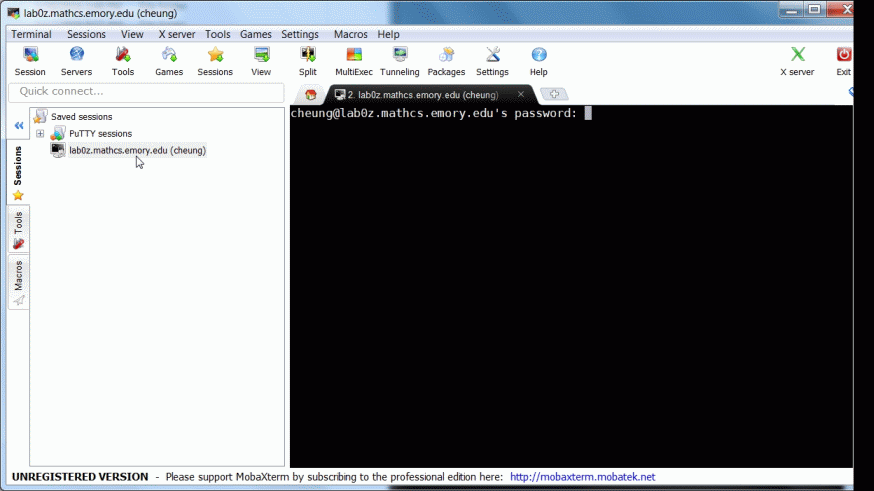
Enter your Emory NetID password
A successful login will give you the following message:
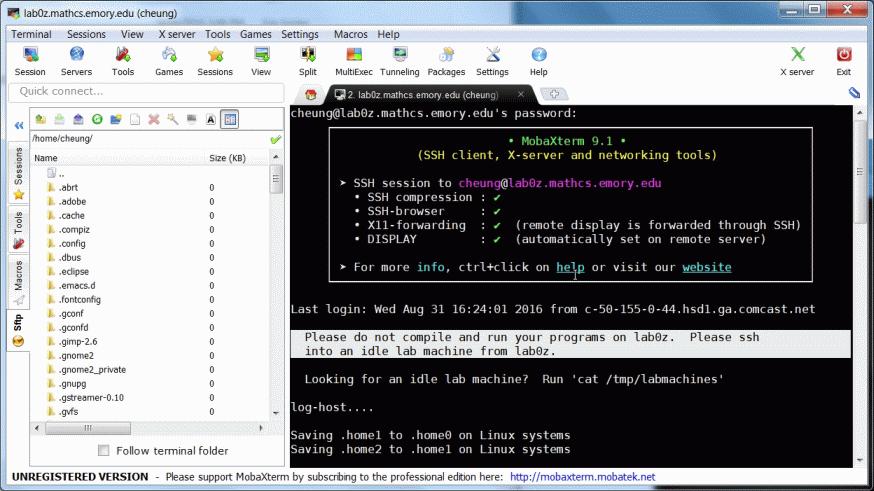
I have highlighted an important message at login.
Very important:
After log in to lab0z.mathcs.emory.edu, check for unused machines in the MathCS lab with the command:
cat /tmp/labmachines
Example:
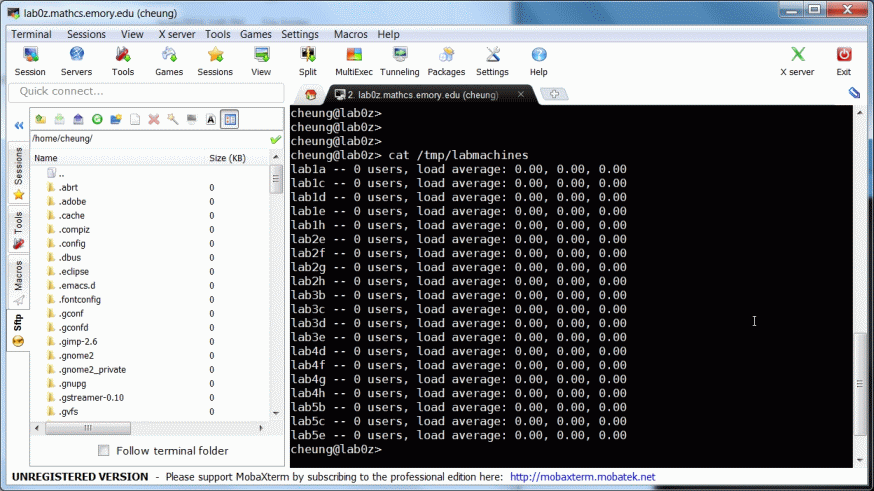
Select an unused machine from the list and use ssh to login to the lab machine:
ssh -X labXY
(If you get "Host verification key failed" error: see below to fix it)
where:
X   is a number: 1,2,3,4,5,6,7
Y   is a letter: a,b,c,d,e,f,g
Example:
ssh -X lab3d
(If you get "Host verification key failed" error: see below to fix it)
(You may need to re-enter your Emory NetID password)
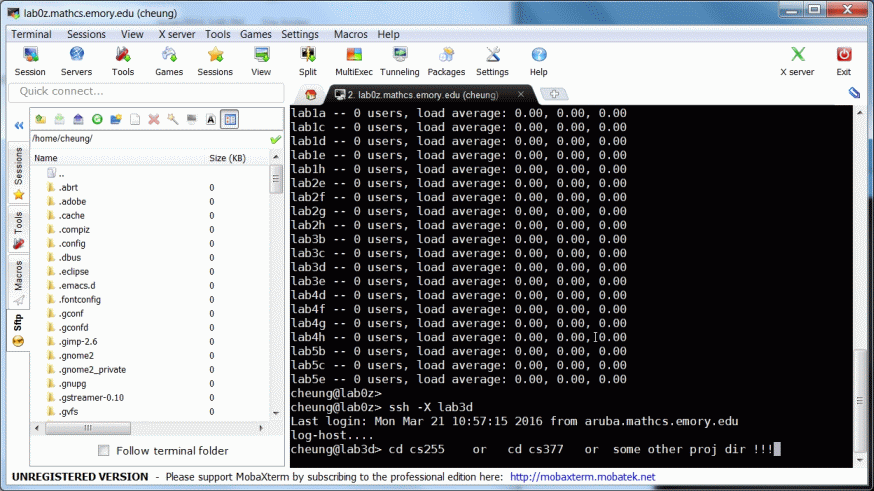
Then:
Use the cd command to change the working directory to your project directory
You are ready to work from your dorm !!!
Happy Tele-commuting !!!
After a successful connect, you can do anything from your dorm as if you were in the lab - well, things are just slower.
(I heard that the speed in the dorm is great; but if you have DSL or Cable, graphical applications - like EGTAPI can be a bit slow)
Opening new terminals
After you logged in to a lab machine, you can open a new terminal using this command:
gnome-terminal &
Open as many terminals as you need to do your program assignment....
Note:
- Do not execute the
gnome-terminal &command on lab0z.mathcs.emory.edu!!!! - You must run it on a "normal" work station in the MathCS lab.
Some common errors and how to fix them
If you start a SSH connection to lab0z.mathcs.emory.edu and see this message:
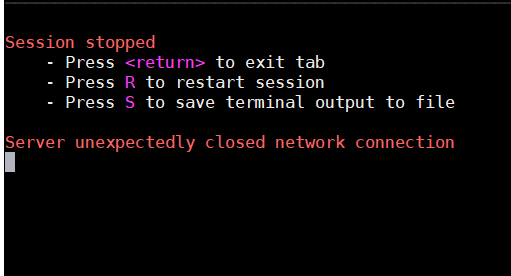
the most likely cause is you did not have Emory VPN running.
You need to install Emory VPN from this page first (and run it):
If you used ssh -X labXY on lab0z and see the following error:
@@@@@@@@@@@@@@@@@@@@@@@@@@@@@@@@@@@@@@@@@@@@@@@@@@@@@@@@@@@
@    WARNING: REMOTE HOST IDENTIFICATION HAS CHANGED!     @
@@@@@@@@@@@@@@@@@@@@@@@@@@@@@@@@@@@@@@@@@@@@@@@@@@@@@@@@@@@
IT IS POSSIBLE THAT SOMEONE IS DOING SOMETHING NASTY!
Someone could be eavesdropping on you right now (man-in-the-middle attack)!
It is also possible that the RSA host key has just been changed.
The fingerprint for the RSA key sent by the remote host is
??:??:.... (a lot of numbers and letters separated by ":")
Please contact your system administrator.  ....
Host verification key failed
There is no attack, but you do need to fix something before you can use ssh again...
How to fix it:
Execute this command on lab0z: rm ~/.ssh/known_hosts
Try the ssh-command again.