Remote Access Windows SFTP
Transferring files between your Windows PC and MathCS system
Download and install the MobaXterm software
Note:
Skip this step if you have already installed MobaXterm (for accessinglab0z.mathcs.emory.edu).
You need to get (= download) the following software and install it on your Windows PC before you can work remotely from home:
MobaXterm:click here
Setting up an sftp session to lab0z.mathcs.emory.edu
In order to perform file transfer, you need to set up an sftp (Secure File Transfer Protocol) session to lab0z.mathcs.emory.edu.
Follow these instructions to set up the sftp session:
Start the MobaXterm application.
Select the New session tab:
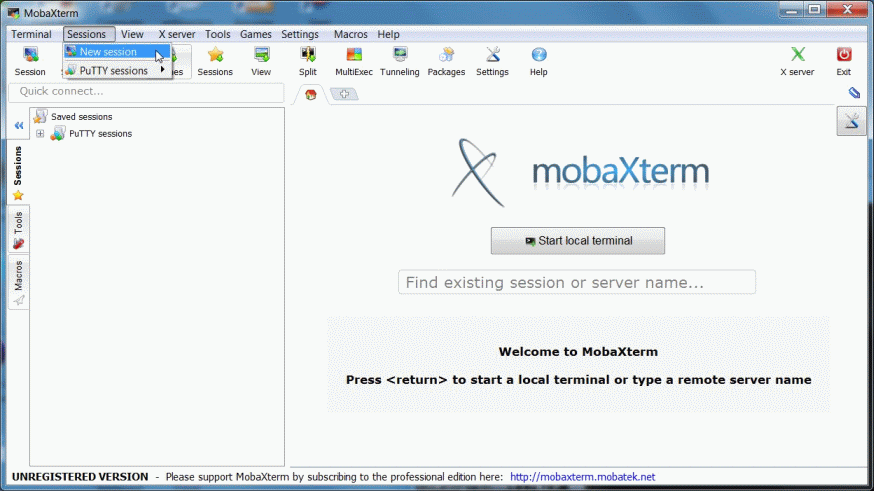
A window will pop up....
In this pop up window, select the SFTP tab:
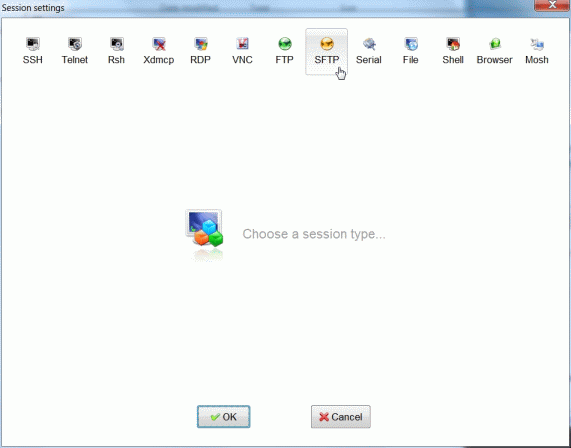
Click the OK button at the bottom to make the selection.
Enter:
lab0z.mathcs.emory.eduinto the Remote host field- Check the Specify username box and enter your Emory NetID into the username field
- Click the OK button to save the session
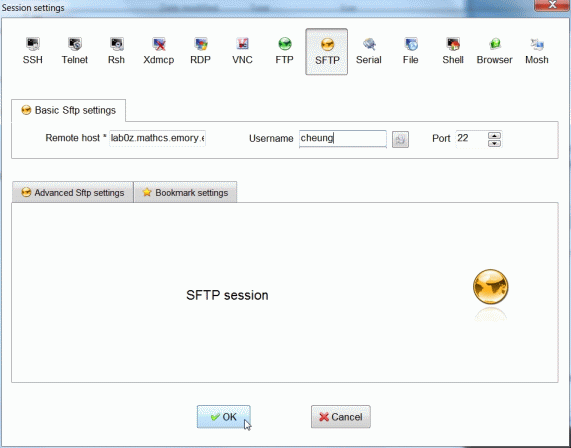
Transferring files between your laptop and the MathCS system
How to transfer files between your laptop and the MathCS system:
Start the MobaXterm application.
Select the sftp session to
lab0z.mathcs.emory.edu: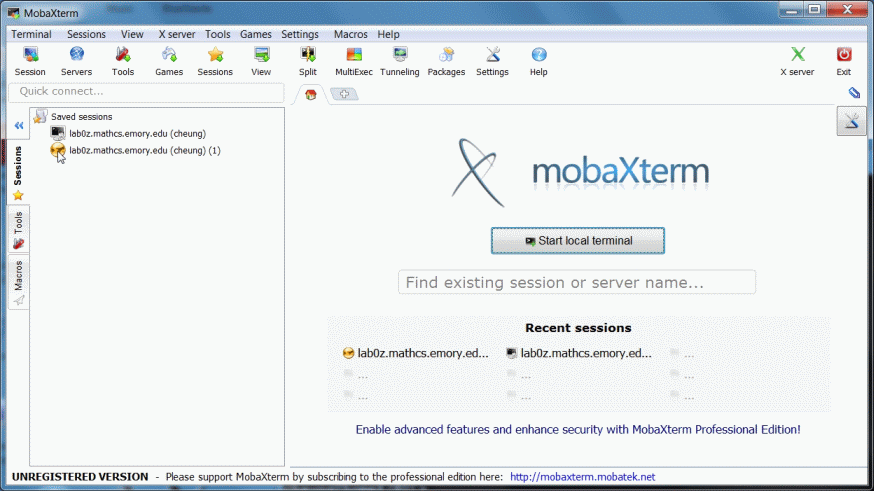
Type in your password for your Emory NetID.
You will see the following window:
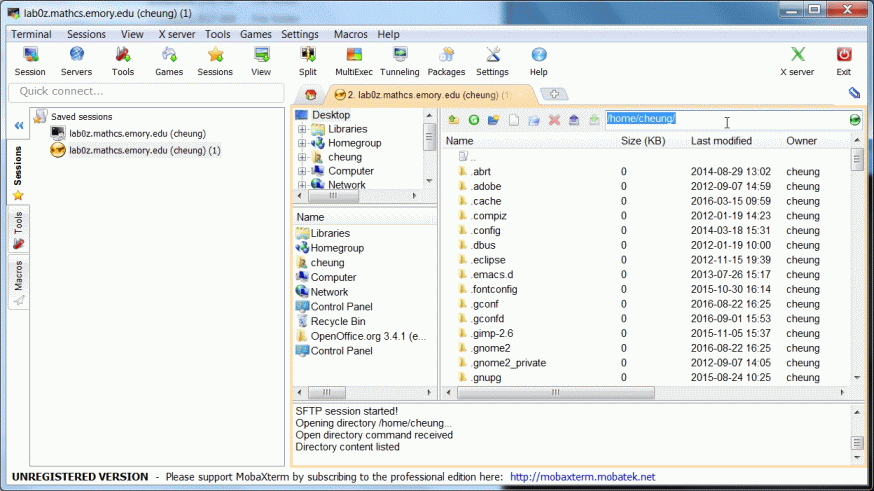
The right most panel contains files and directories on the MathCS system.
The panel to the left of this panel contains files on your laptop/PC.
Transfer files:
Click on the folder in the panel to go to the file location.
You must do this on your PC and on the MathCS panels !!!
Drag the desired file from one panel into the other panel to transfer the file.