Remote Access Mac
Working from home using OS X 10.8 (Mountain Lion) or higher (by Jason Yang)
Pre-requisite for Mac
Before you continue, you must first make sure that your Mac has a correct hostname.
Run this command in a command window:
hostname
Make sure the hostname does not contain spaces or Chinese characters.
If your hostname contains space(s) or Chinese characters, do the following to fix it first:
Under Settings → Sharing
change the computer name (use a name with ONLY English letters and no spaces !)
XQuartz
You must first download and install the XQuartz app.
(That's because Apple has removed X11: click here)
XQuartz (commonly referred to as X11.app) is Apple Inc.'s version of the X server, a component of the X Window System, for Mac OS X.
Wikipedia: click here
Steps to download, install and run XQuartz
Step 1: download XQuartz from:
Step 2: Install XQuartz app on your mac.
(Double click on the package icon in your Download folder and follow the instructions)
Step 3:Open the XQuartz app on your mac.
(By either finding the XQuartz app in your dashboard, or search it using the search (magnifying glass) app on the right corner of your desktop:
 ).
).When you have opened XQuartz, an xterm window will automatically be open.
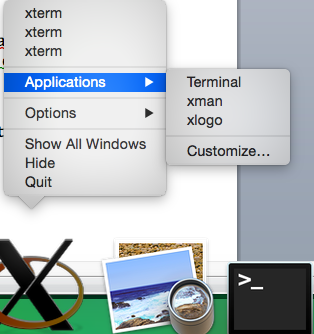
If there is no xterm window, please open one yourself by right clicking on the XQuartz icon on the dock, then chooseapplication → Terminal:
Important note:
- You must use the XQuartz application to run "ssh" (see below) to connect to Emory.
(You cannot use an ordinary command window - it will not work) - If your Mac has been powered down, you may need to restart the XQuartz application.
External resource on XQuartz
I found an external source with information to install XQuartz: click here
(you can use it as additional info if the steps above are insufficient)
Connecting to Emory
Remote login to a workstation in the MathCS lab:
Open an xterm on your Mac.
Type the following command in the xterm window:
ssh -Y -l NetID lab0z.mathcs.emory.edu

Note:  0. Cut and paste the command to your MAC !!!
       1. Replace NetID with your Emory Net ID
       2. Must use: capital -Y and low case -l (ell) !!!!
Note:
Sometimes, -Y does not work and you will need:
ssh -X -l NetID lab0z.mathcs.emory.edu
worked better for them. Try -X (capital X) if -Y does not work.
(In either case, you must replace "NetID" with your Emory Net ID).
Log in with your password.
Note: you will not see anything that you typed (because the password is secret); however, letters are being entered until you hit the [Enter] key.
Important note: Do not compile and run your programs on
lab0z.mathcs.emory.edu!!!
Very important:
After log in to lab0z.mathcs.emory.edu, check for unused machines in the MathCS lab with the command:
cat /tmp/labmachines
Example:
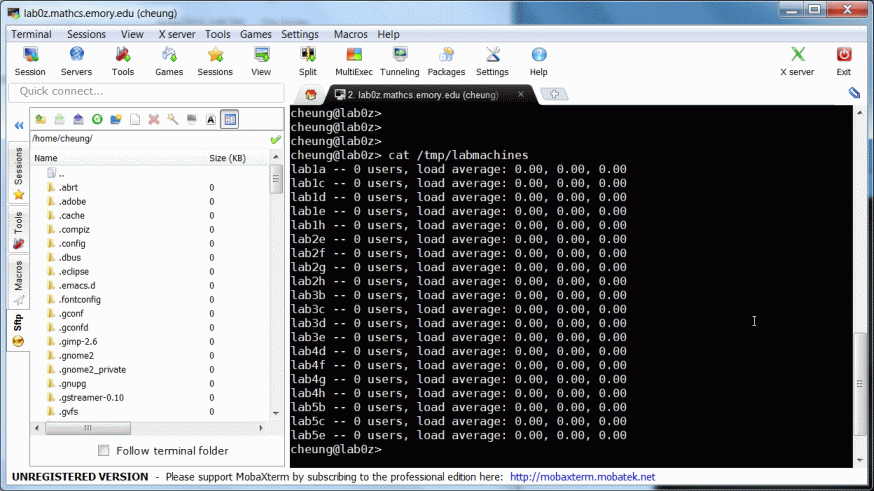
Select an unused machine from the list and use ssh to login to the lab machine:
ssh -X labUV
Note:
On lab0z, you MUST use -X (and never use -Y, this is NOT a Mac) !!!
where:
U is a number: 1,2,3,4,5,6,7 V is a letter: a,b,c,d,e,f,g
Example:
ssh -X lab3d
(You may need to re-enter your Emory NetID password)
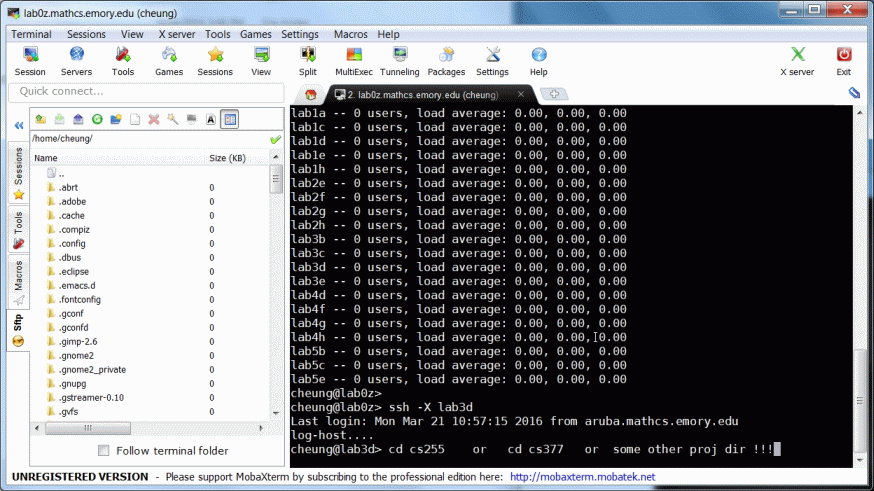
Then:
Use the cd command to change the working directory to your project directory
You are ready to work from your dorm !!!
Happy Tele-commuting !!!
After a successful connect, you can do anything from your dorm as if you were in the lab - well, things are just slower.
(I heard that the speed in the dorm is great; but if you have DSL or Cable, graphical applications - like EGTAPI can be a bit slow)
Open more windows on a lab machine
Opening more windows:
Note:
- Only open more windows on an ordinary lab machine
- Do not open more windows on
lab0z.mathcs.emory.edu!!!
To open more terminals, type:
gnome-terminal &
Trouble Shooting
When you execute the ssh command, it exits right away with this error message:
Symptom:
OnYourMac>> ssh -X -l NetID lab0z.mathcs.emory.edu
ssh_exchange_identification: read: Connection reset by peer
How to fix it:
You need to install Emory VPN !!!
See this link on how to install Emory VPN: click here
When you execute the ssh command, it exits right away with the XAuthorization error message:
Symptom:
OnYourMac>> ssh -X -l NetID lab0z.mathcs.emory.edu
X_forwarding_request: XAuthorization error
How to fix it:
Execute this command on your Mac:
rm ~/.Xauthority
Then try to connect to lab0z with the "ssh" command above.
When you execute the ssh command, it exits right away with the above error message:
Symptom:
OnYourMac>> ssh -X -l NetID lab0z.mathcs.emory.edu
X_request_forwarding: bad authentication data: MIT-MAGIC-COOKIE-1
How to fix it:
Execute this command on your Mac:
rm ~/.Xauthority
Then try to connect to lab0z with the "ssh" command above.
When you execute the ssh command, it exits right away:
Symptom:
OnYourMac>> ssh -X -l NetID lab0z.mathcs.emory.edu
ssh_exchange_identification: read: Connection reset by peer
After running the ssh command, it exits with an error message.
Solution procedure:
- Double click Macintosh HD on your Desktop.
- On the left side of the box, under Places, click on your user name. This will take you to your home folder.
- At your home folder, hit this key combination (All keys at once):
<command> + <shift> + <g> - A "Go to the folder:" box will pop up. Type .ssh in the box then hit <return>. This will take you inside the .ssh directory.
- Delete the known_hosts file. Now you can use ssh again.
Further note:
If the above procedure does not work, then the MathCS firewall restrictions is blocking your access to lab0z.mathcs.emory.edu.
You must install Emory's VPN software:
- Call LITS Helpdesk at 404-727-7777 and request access to the VPN for your NetID.
- Following instructions at this webpage to install VPN software:
http://it.emory.edu/security/vpn.html
You can logon to a lab machine. But you cannot open any new windows.
Symptoms:
- You can login to
lab0z.mathcs.emory.edu - You can login to a normal lab machine, let's say:
lab1a.mathcs.emory.edu - On
lab1a.mathcs.emory.edu, you cannot open any new windows
Solution procedure:
Open an xterm on your Mac.
Type the following command in the xterm window:
xlogo
Result:
If you got an error:
Fix:
You forgot to start the XQuartz application !!!!
If you see a window with a large
Xsymbol:Continue to step 3....
Type the following command in the xterm window:
ssh -X -l yourNetID lab0z.mathcs.emory.edu
Login to
lab0z.mathcs.emory.eduand type this command:lab0z% echo $DISPLAYIf the command
echo $DISPLAYreturns a value similar to"localhost:15.0", then:run the following command:
xlogo
you should see a window with a large letter
X.If you see all the above, then:
Continue to step 4....Otherwise, use this solution procedure:
- Go back to your Mac
- Edit this file:
/etc/sshd_config - Find these lines:
X11forwarding ... X11DisplayOffset ... X11localhost ...
Make sure they are:X11forwarding yes X11DisplayOffset 10 X11localhost yes
without a # preceding them !!!! - Save the file
/etc/sshd_config - Reboot your Mac !!!
After rebooting, try to connect to Emory (lab0z.mathcs.emory.edu) using the instructions above.
Type the following command on
lab0z.mathcs.emory.edu:lab0z: ssh -X lab1a.mathcs.emory.edu(If
ssh -X lab1a.mathcs.emory.eduis unavailable, use another workstation in the lab, e.g.,lab3d.mathcs.emory.edu)On
lab1atype:lab1a: xlogoYou should see a window with a large X.
If you don't see it, send an email to:
help@mathcs.emory.edu
and ask for help.
Sometime, the MathCS department changes system information on the workstations (e.g.: upgrading to a new system).
This will cause the following error when you use ssh to connect to the machine:
@@@@@@@@@@@@@@@@@@@@@@@@@@@@@@@@@@@@@@@@@@@@@@@@@@@@@@@@@@@
@    WARNING: REMOTE HOST IDENTIFICATION HAS CHANGED!     @
@@@@@@@@@@@@@@@@@@@@@@@@@@@@@@@@@@@@@@@@@@@@@@@@@@@@@@@@@@@
IT IS POSSIBLE THAT SOMEONE IS DOING SOMETHING NASTY!
Someone could be eavesdropping on you right now (man-in-the-middle attack)!
It is also possible that the RSA host key has just been changed.
The fingerprint for the RSA key sent by the remote host is
??:??:.... (a lot of numbers and letters separated by ":")
Please contact your system administrator.
There is no attack, but you do need to fix something on your Mac before you can use ssh again...
How to fix it:
- Double click Macintosh HD on your Desktop.
- On the left side of the box, under Places, click on your user name. This will take you to your home folder.
- At your home folder, hit this key combination (All keys at once):
<command> + <shift> + <g> - A "Go to the folder:" box will pop up. Type .ssh in the box then hit <return>. This will take you inside the .ssh directory.
- Delete the known_hosts file. Now you can use ssh again.